Free scope check. No payment, account access or raw customer data is needed now.
Where is the WooCommerce email log?
On WooCommerce 10.9 or later, trigger the affected notification, then open WooCommerce → Status → Logs and select or filter the transactional-emails source. Match the entry to the email type, order and time. Sent is a handoff to the mail system, Failed records a sending error, Disabled means the notification is off, and Skipped means a required condition was missing.
Choose the outcome you see
Select an outcome. This tool does not upload a log or connect to your store.
You can also use the full decision table below.
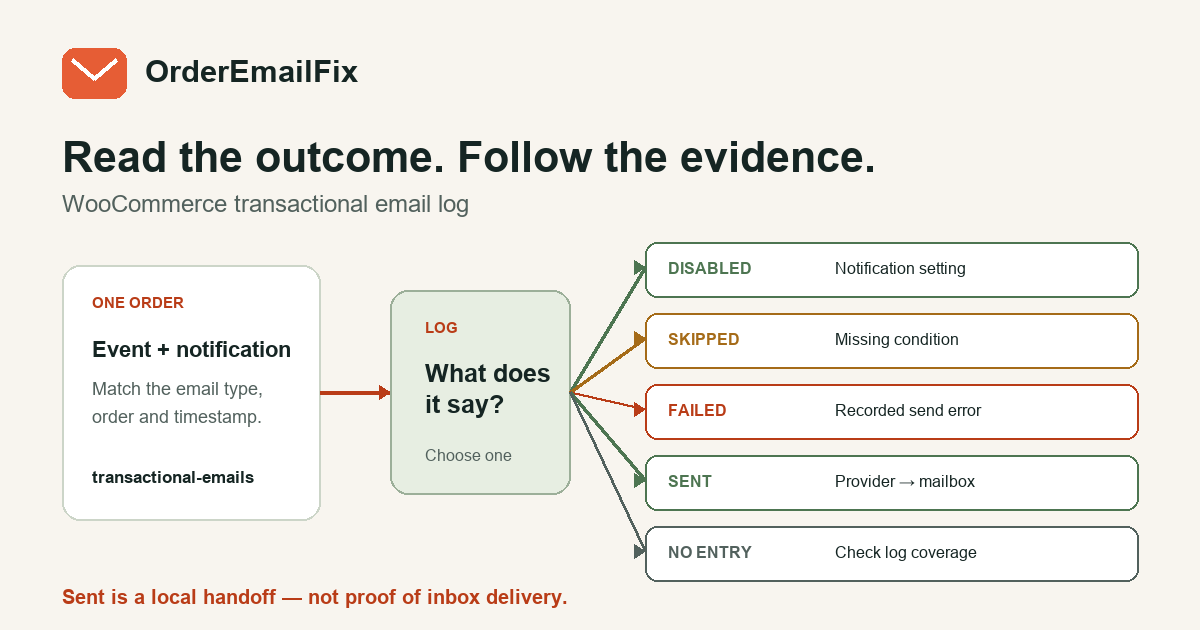
What each WooCommerce email log outcome means
On a small screen, scroll the table sideways to compare all columns.
| Outcome | What WooCommerce established | Useful next check |
|---|---|---|
SentINFO | WooCommerce handed the message to the site's mail system without a reported local error. | Find the same recipient and time in the sending provider, then check the mailbox. |
FailedWARNING | The site mail process returned an error for this attempt. | Use the recorded error and the provider's matching event; do not replace settings at random. |
DisabledNOTICE | The relevant WooCommerce notification was turned off. | Confirm that this email is needed, enable that notification, then repeat the affected event. |
SkippedNOTICE | WooCommerce did not send because a required condition was missing. | Read the reason, such as no recipient, and correct that condition before retesting. |
| No entry | The visible log does not establish whether the expected attempt happened. | Check version, logging, threshold, retention, source, date and the order event. |
These outcome definitions and log levels come from the WooCommerce email troubleshooting documentation. Native transactional-emails logging was introduced in WooCommerce 10.9.
Sent, but the email did not arrive
A Sent entry means the WooCommerce call completed without a reported local error. It does not prove that a sending provider accepted the message, that the receiving server accepted it, or that it reached the inbox. WordPress makes the same distinction for a successful wp_mail() result.
- Match the email type, order and time in the WooCommerce log.
- Search your sending provider for the same recipient and time. Record whether it shows accepted, delivered, delayed, bounced, blocked or no matching event.
- If the receiving server accepted the message, check spam, quarantine, routing and mailbox rules. Use the sender authentication and spam guide for a real message's evidence.
Share a Sent-but-missing result ↗
Failed: use the recorded error
A Failed entry records a sending error at WARNING. Preserve the exact error, time and email type, but redact addresses, credentials and customer data. A connection timeout, rejected login and unapproved sender are different problems.
Match the error to the provider documentation and event record. If the evidence points to the WordPress mail connection, compare the SMTP connection, login and sender checks. WooCommerce documents a rare limitation where the human-readable failure reason can describe another nearly simultaneous WordPress email failure; the email type and Failed status remain the stronger fields.
Share a redacted Failed result ↗
Disabled: check that notification
Disabled means the email type is turned off under WooCommerce → Settings → Emails. Confirm that the selected log entry belongs to the notification you need. Admin New order, customer Processing order and customer Completed order messages have separate settings and triggers.
Enable only the intended notification, save, and repeat its event on a controlled order. Our sandbox repair lab shows this exact boundary: the disabled admin notification logged “not sent,” then the enabled notification was generated and captured on a fresh order. It did not test SMTP or an external inbox.
Check a disabled notification ↗
Skipped: find the missing condition
Skipped means WooCommerce deliberately did not send because a required condition was absent, such as no recipient. Read the reason in the same entry and inspect that notification or order. Do not treat Skipped as proof of a broken SMTP connection because no send was attempted.
After correcting the missing condition, repeat the same notification workflow once and compare the new entry. Keep the order status and notification type in your notes so the second result is a valid comparison.
No transactional email entry appears
An empty search is not enough to conclude that WooCommerce never attempted the email. Check these boundaries first:
- Version: native transactional email logging requires WooCommerce 10.9 or later.
- Logging: open WooCommerce → Status → Logs → Settings and confirm logging is enabled.
- Level threshold: a strict threshold can hide
INFOSent entries andNOTICEDisabled or Skipped entries. - Storage and retention: changing storage does not migrate old entries, and expired records may already be removed.
- Source and date: select
transactional-emailsand the date when the controlled event ran. - Scope: password resets and messages generated outside WooCommerce transactional emails may need a provider log or an appropriate WordPress mail logger.
The WooCommerce logging reference explains storage, retention and thresholds. If coverage is correct and a fresh controlled event still creates no matching entry, check the expected order status, queued action, fatal error and conflicts using the broader order-email guide.
Order notes and the log are not identical
WooCommerce adds Sent and Failed order-email attempts as private order notes for order-related messages. Disabled and Skipped outcomes appear only in the transactional email log. Use the log when you need all four outcomes, and use order notes as supporting evidence for one order.
Record evidence without exposing customer data
Copy this structure into your own private notes:
- Order and event
- Test order reference · status before/after · event time
- Expected email
- Email type · intended recipient role · enabled?
- WooCommerce result
- Sent / Failed / Disabled / Skipped / no entry · redacted reason
- Next system
- Provider event · mailbox result · remaining uncertainty
Do not publish a customer's address, order record, API key or raw production log. A redacted outcome and timestamp are enough for an initial repair enquiry.
Reviewed October 16, 2026 against WooCommerce's official email troubleshooting, transactional logging and logger documentation. Menu labels can vary by installed version and storage method. This guide interprets evidence; it cannot inspect your store.